Accessibility
Taking part in research with a screen reader
A practical guide for screen reader users on completing online surveys, handling grid questions, and joining focus groups to share valuable feedback.
Answering surveys with low vision can be frustrating if the text is tiny or the colors blur together. These built-in screen settings and browser tools make sharing your opinion much easier.
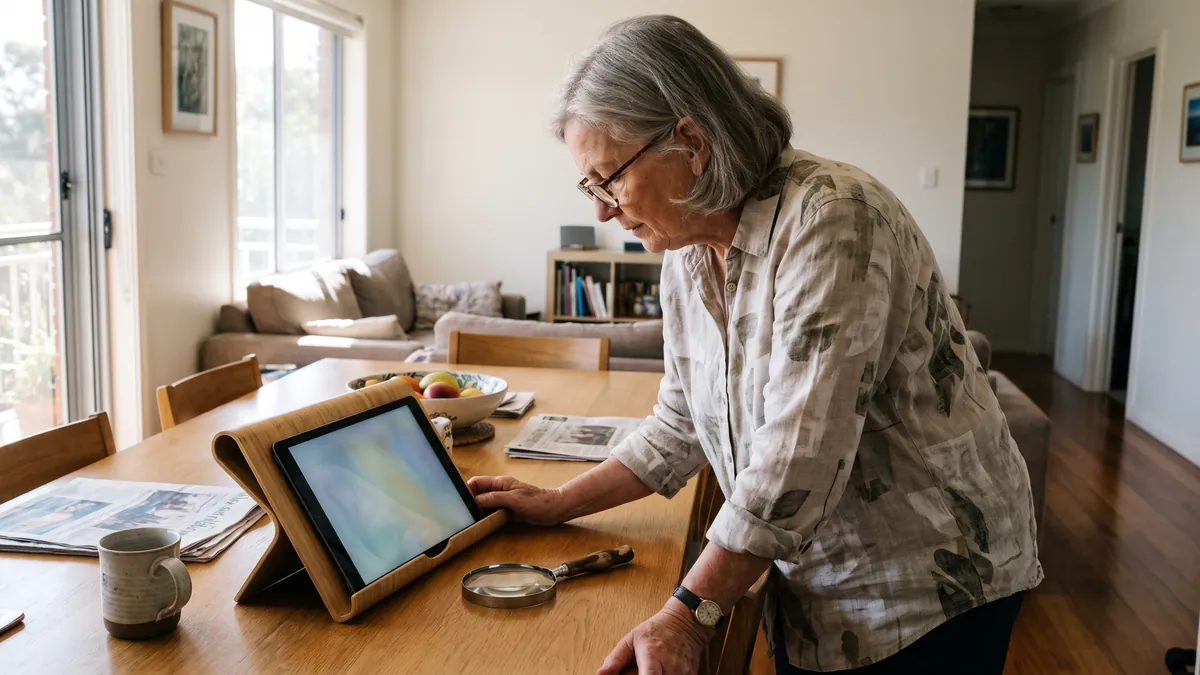
When you take surveys, you will often find text that is just too small to read comfortably. Many research companies design surveys for average screens, forgetting about people with low vision. You can fix this quickly using your web browser. Most modern browsers have built-in zoom tools that enlarge everything on the page, including survey questions and answer buttons.
To zoom in on a computer, hold the Control key on a PC or the Command key on a Mac. Then, press the plus sign key. Press it a few times until the text is big enough for you. To zoom out, hold the same key and press the minus sign key.
If you always want text to be larger, you can change your default browser settings. Go to the settings menu in Chrome, Safari, Edge or Firefox, and look for the appearance section. You can set the default page zoom to a higher percentage. You can also change the default font size to large or very large.
Sometimes the size of the text is fine, but the colors make it hard to read. Light gray text on a white background is very common in survey designs. This lack of contrast causes problems for many people with low vision. Changing your color settings can make the words stand out clearly.
Many devices now offer a dark mode setting. This flips the usual colors, giving you white text on a dark background. You can turn on dark mode in your phone or computer system settings. Most web browsers will detect this and ask the survey website to show a dark version, if the research company created one.
If dark mode is not enough, look for high contrast settings on your device. Windows and Mac computers both have accessibility menus with contrast options. These settings force your screen to use very distinct colors, like bright yellow text on a black background. High contrast mode overrides the colors the survey creator chose.
Some survey pages do not zoom well. When you try to make the text bigger, the words might run off the edge of the screen. You might have to scroll sideways to read a full sentence, which is annoying. In these cases, a screen magnifier is a great alternative.
Both Windows and Mac computers have free, built-in screen magnifiers. On Windows, you can open the Magnifier app from the start menu. On a Mac, you can turn on the Zoom feature in your accessibility settings. These tools act like a digital magnifying glass by making a specific part of your screen larger as you move your mouse.
If your eyes are tired, you can also use basic text reading tools. Many computers and smartphones have built-in screen readers that will read the survey questions out loud to you. You do not always need an expensive program to hear the text. Simple spoken content features on your phone can read the text you select with your finger.
Even with great browser tools, some survey questions are just poorly designed for low vision. Market research relies on many different types of questions. Some of these formats are notoriously bad for accessibility.
Grid questions are a very common example. These are large tables with questions in the rows and answers in the columns. When you zoom in on a grid, you often lose track of which column you are clicking. Drag and drop questions are also difficult because they require fine mouse control that is hard when your screen is magnified.
When you encounter these questions, do your best to answer them. If a drag and drop question is impossible to use, see if the page lets you skip it. Research companies need to know that these formats exclude people. We recently wrote about why research needs disabled voices, and your feedback helps push the industry to design better questions.
Many people prefer taking surveys on a phone instead of a computer. Mobile screens are smaller, which makes low vision challenges even more noticeable. Thankfully, smartphones have excellent accessibility features built into their operating systems.
If you use an iPhone, you can adjust your text size in the display settings. You can also use the display zoom feature to make everything on your screen larger. Android phones have very similar settings for font size and display size. Turning these up will make mobile web browsers display larger text automatically.
Both Apple and Android devices also have color inversion options. This works just like high contrast mode on a computer. If a survey app or website is too bright, flipping the colors can relieve eye strain. Taking a few minutes to explore your phone settings will make taking surveys on the go much more pleasant.
Survey panels want to send you studies that match your profile. If you have low vision, it is a good idea to mention this in your account settings. This helps the panel understand who you are and what your daily life is like.
Many panels have health or lifestyle profile surveys you can fill out. You might see questions asking if you use assistive technology, wear glasses, or have a visual impairment. Answering these honestly can actually qualify you for specific studies. Companies often want to test new accessible products with people who have low vision.
You might also be invited to a pre-screener. A pre-screener is a very short survey that checks if you are a good fit for a larger study. If a pre-screener asks about your vision, telling the truth will ensure you are placed in studies where your feedback is valuable. You can read more about How online survey panels work, and where your answers go to understand how your profile connects you to research.
Sometimes, a survey is completely broken for someone with low vision. The text might be an image instead of real words, so your browser cannot enlarge it. The buttons might be invisible in high contrast mode. When this happens, it is helpful to report the problem to the panel.
Most survey panels have a contact form or a support email. When you write to them, try to include as much detail as possible. Do not just say the survey was broken. Explain exactly what happened by telling them you have low vision and describing the specific issue.
What to include in your support ticket When reporting an inaccessible survey, always include the survey ID number. This is usually found in the email invitation or at the top of the screen. Also mention what device you were using, what browser you used, and if you had any magnification tools turned on. This helps the technical team find the exact study and test the problem themselves.
Reporting bad surveys helps everyone in the community. It allows the panel to warn the client who wrote the survey. Over time, this pressure forces research companies to build better, more readable surveys. If you are ready to share your opinions, you can create a free account with us to get started.
Yes, many legally blind people take online surveys using screen readers or heavy magnification. Some research companies design accessible surveys that work well with assistive technology. If a specific survey is not accessible, you can simply close it and try the next one.
You might be screened out of some studies that require testing tiny visual details, like reading medicine bottles on a screen. However, being honest about your vision can also qualify you for other specific studies. Companies often need feedback from people with low vision to test new accessible products.
Most survey panels use a single website or app for all members. Instead of a separate app, they rely on you using your own device settings, like large text or voiceover tools. Making sure your browser and phone settings are adjusted is the best way to improve your experience.

Accessibility
A practical guide for screen reader users on completing online surveys, handling grid questions, and joining focus groups to share valuable feedback.

Accessibility
For Global Accessibility Awareness Day 2026, we review the most common accessibility requests from our members and how research panels can adapt.

Accessibility
Taking part in interviews and focus groups is easier when you know what to expect from sign language interpreters. Find out how to set up your video and what to ask researchers.
Points for your profile, cash for every survey, and instant pay when you qualify for a study.
Create my free account